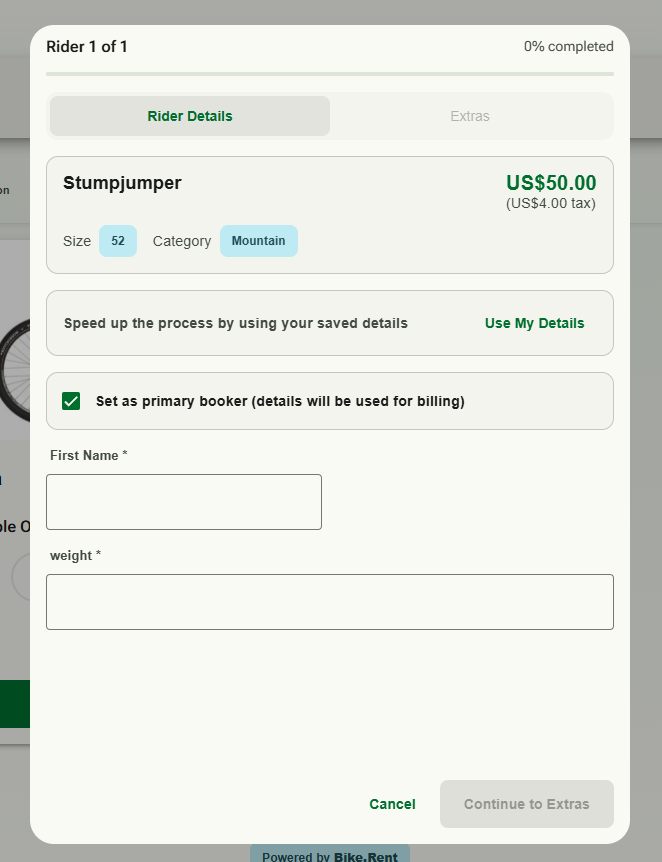
You can ask customers to give you information against each item they book on your Customer Booking Page (CBP) — not just once for the whole reservation. This is how you collect the details you need to fulfil the booking, such as a rider’s height and weight, a preferred size, or a note about the item.
Booking-level vs item-level details
- Per-Rental level details apply to the whole reservation (for example the main contact — see the PrimaryBooker).
- Per-Item level details are asked separately for every item on the booking. If a customer books three items, they provide these for each one.
When the customer enters item details
Item-level details are captured as the customer builds their basket, not at the end:
- Adding an item — when a customer adds an item to their basket, they’re prompted to enter that item’s details there and then.
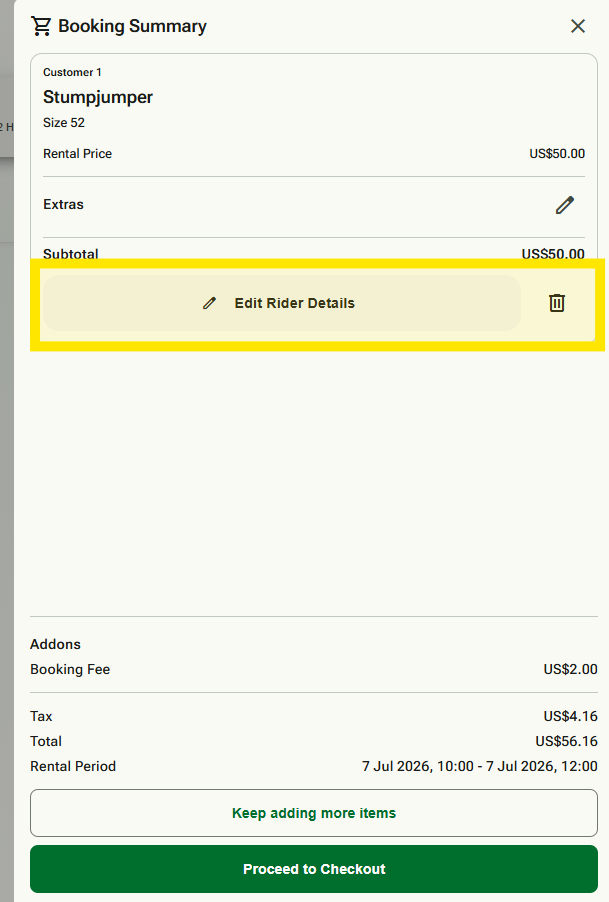
- In the basket — they can go back and edit an item’s details while it’s in the basket.
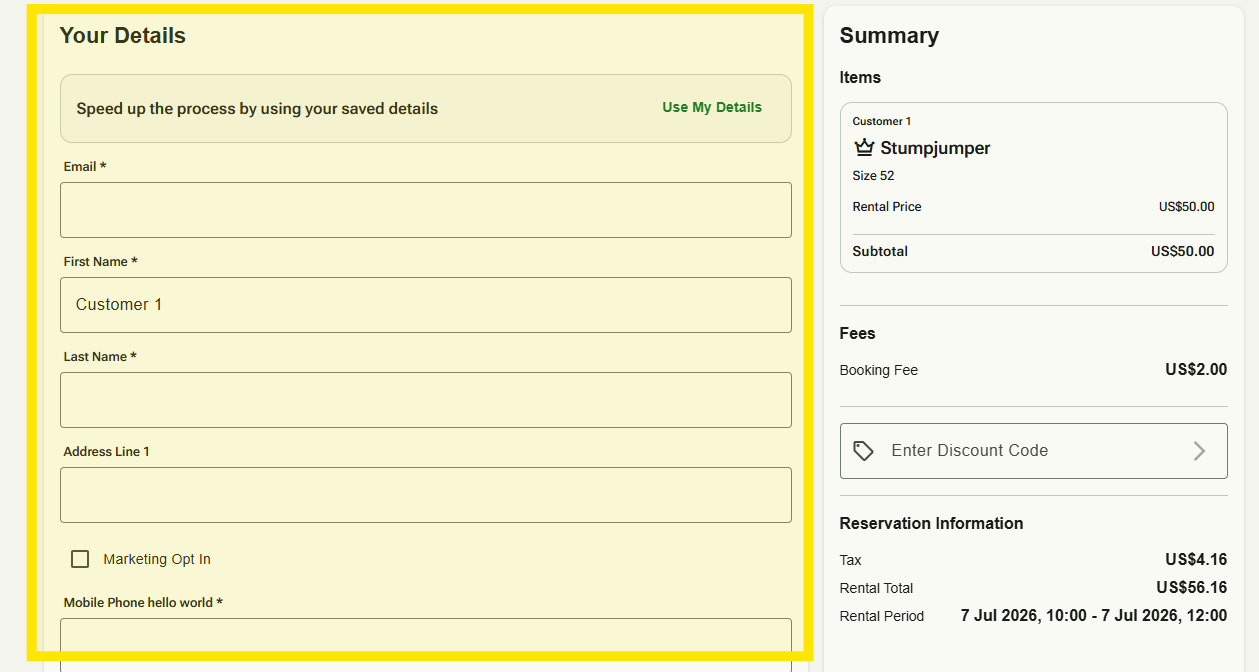
- At checkout — the per-item details are within the cart page. Checkout is only for the per-rental information. So if a customer wants to change an item’s details, they do it back in the cart, before checkout.
Autofill from the main booker
Where an item-level field matches the main booker (the Primary Booker — the person making the booking), it’s autofilled for them, so they don’t retype details you already have for that person.
Reusing saved details (logged-in customers)
A customer who logs in to their account can reuse the information you already hold for them, rather than entering it again. This only works if they created an account on a previous CBP booking.
Different questions for different products
You don’t have to ask the same questions for every item. You can tailor which Per-Item questions appear for each Product Family, so customers only see what’s relevant to what they’re booking — for example asking DIN settings for skis, but rider weight for mountain bikes.
You do this by first configuring all the Customer Data questions you might need, then, on each Product Family, unticking the questions that don’t apply to it. For the full step-by-step, see Customizing Your Customer Data - By Product.
Good to know
- The fields a customer sees are the ones you’ve set up for that offering — you control which are shown and which are required. You can do this in the Customer Data setting page in the Back Office.
- Keep required item-level fields to what you genuinely need; every extra required field is another step.
- Answers are saved against the reservation so your team can see them in Back Office when preparing the booking.
Was this article helpful?
That’s Great!
Thank you for your feedback
Sorry! We couldn't be helpful
Thank you for your feedback
Feedback sent
We appreciate your effort and will try to fix the article