Good clarification — this needs to be written explicitly for store owners, not end customers.
Below is the revised version. The tone assumes:
The reader controls the CBP site
They configure pricing, tax, deposits, add-ons
They need to understand the system so they can explain it to customers
It avoids speaking to the end customer.
How Online Booking Pricing Is Calculated (End-to-End)
This article explains how pricing is calculated in your CBP online booking site, from product selection through to payment confirmation.
Understanding this flow will help you:
Configure your pricing correctly
Anticipate customer questions
Reduce “price increased” or “hidden fee” complaints
Explain deposit vs total differences confidently
1. Base Rental Price
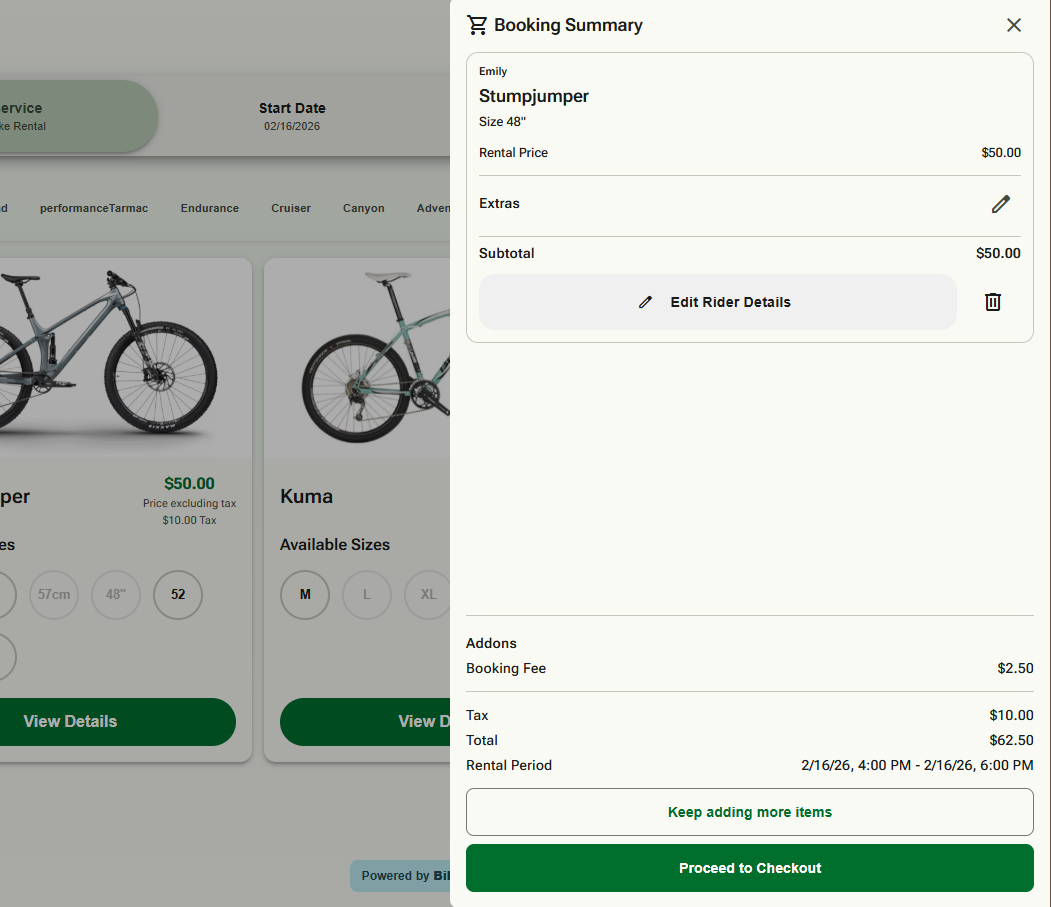
When a customer selects a product and rental dates, the system calculates a base rental price using:
The selected product family
The rental duration
Your store’s pricing rules (hourly, daily, multi-day tiers)
This is the starting price before extras, fees, or tax are applied.
2. Tax Application
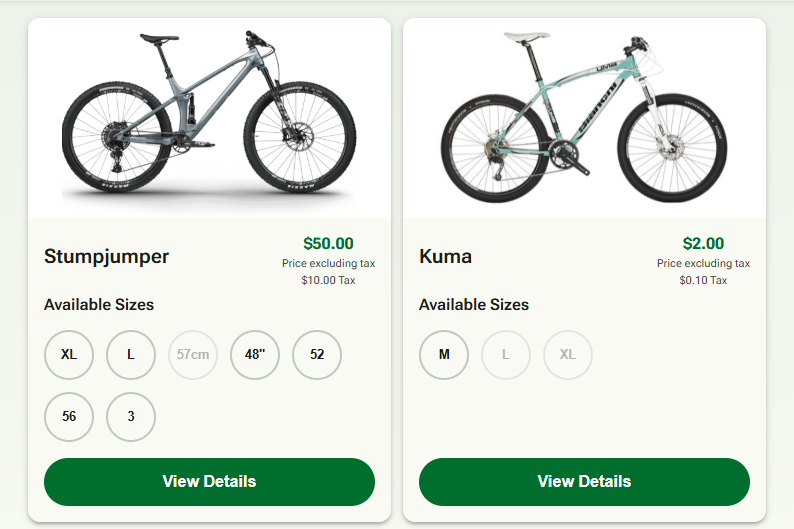
Tax is applied according to your store’s tax configuration.
Your store may be set to:
Inclusive tax (price already includes tax), or
Exclusive tax (tax added during checkout)
Tax is calculated on:
Rental price
Any taxable extras
Any taxable fees
If something is configured as zero-rated, tax will not be added to that item.
3. Product-Level Extras
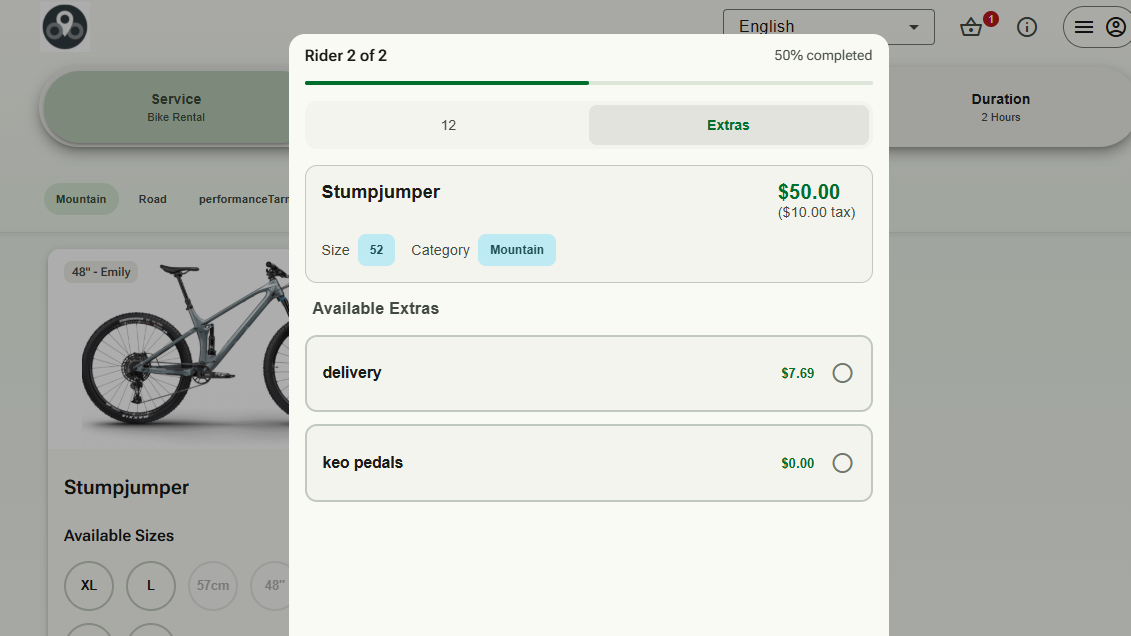
Extras selected on the product page (e.g. insurance, upgrades, accessories) are added before checkout.
Important configuration points:
Extras can be:
Optional
Mandatory (“Required”)
Automatically applied
Extras can have independent tax settings
If an extra displays as £0.00, it may be:
Intentionally free, or
Missing a matching price group for the selected duration
If customers report incorrect extra pricing, this is often linked to duration-based extra configuration.
4. Reservation-Level Add-ons
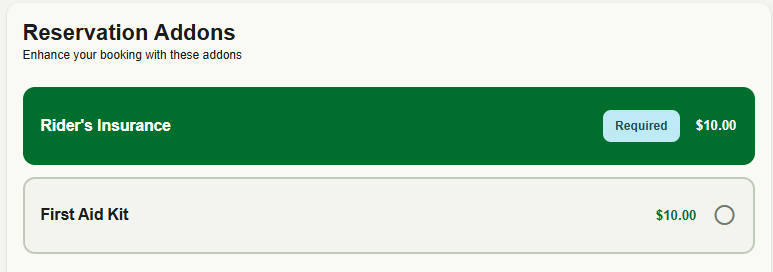
During checkout, booking-level add-ons may appear. These are configured at store level and can be:
Optional
Mandatory (“Required”)
Automatically applied
Examples include:
Online service charges
Booking protection
Delivery fees
If marked as “Required”, customers cannot remove them unless you change the configuration in the back office.
5. Booking Fee
If enabled in your settings, a booking fee may be applied.
This can be:
A fixed amount, or
A percentage of the booking value
The booking fee:
Is shown as a separate line in the booking summary
May be taxable (depending on configuration)
May or may not be refundable (based on your cancellation policy)
If customers question the fee, check that it is included in the prices you advertise and that its name says clearly what it is (for example "Booking fee").
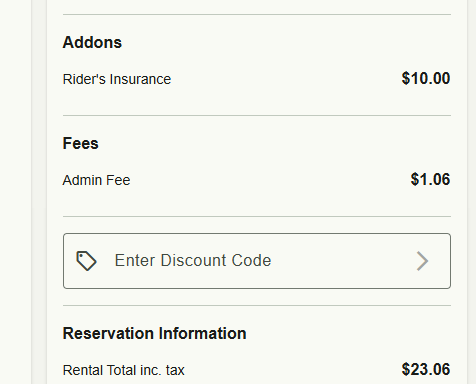
6. Discounts
Discount codes are applied during checkout.
Important behaviour:
Discounts may apply only to rental price
They may exclude booking fees
They may exclude mandatory add-ons
Tax recalculates after discount is applied
If customers believe the discount “did not work”, it is often because it does not apply to all components of the booking.
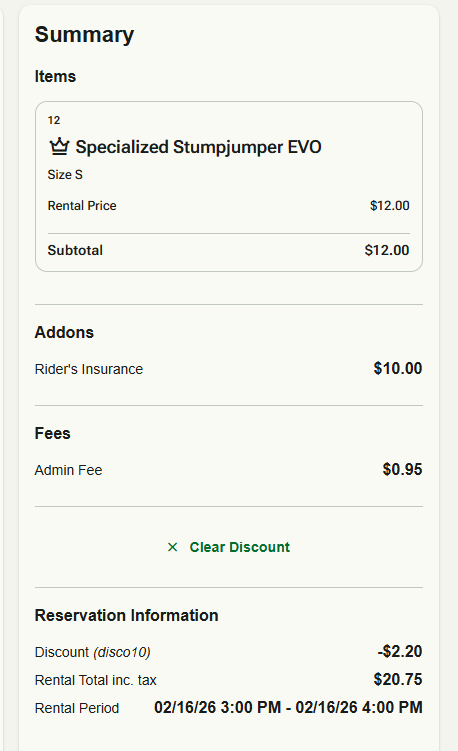
7. Subtotal vs Rental Total vs Amount Charged
This is the most common source of confusion.
Subtotal
Typically includes:
Rental price
Selected product extras
Rental Total
Includes:
Rental
Extras
Reservation add-ons
Booking fee
Tax
This represents the full value of the booking.
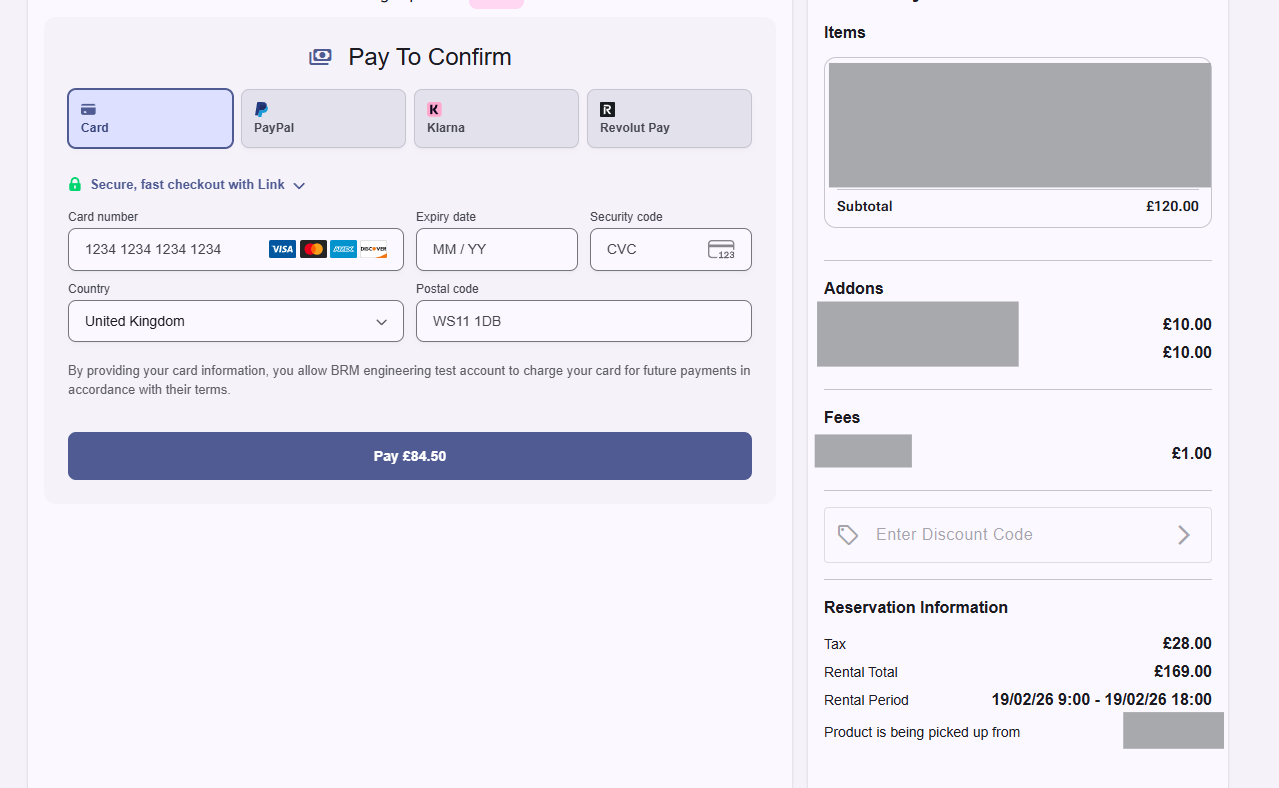
Amount Charged Online (Deposit vs Full Payment)
Your store may be configured to collect:
100% payment online, or
A percentage deposit online
If you use deposits:
The payment button shows only the deposit amount
The remaining balance is due in-store
This is why customers may see a lower “Pay Now” amount than the Rental Total displayed.
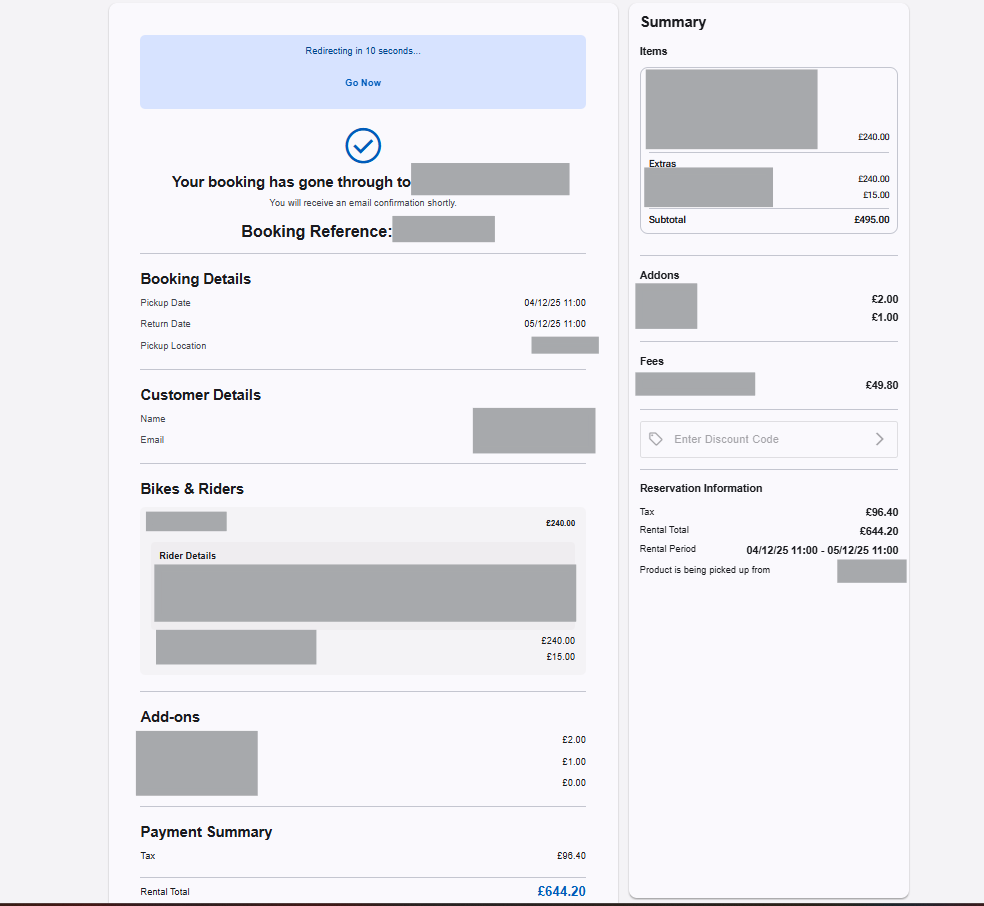
8. Confirmation Page
After payment, the confirmation page shows:
Booking reference
Rental period
Full rental total
Add-ons and fees
Pickup location
If you collect deposits, the confirmation reflects the full rental value, not just the amount paid online.
This ensures reporting and reconciliation remain accurate in the back office.
Common Customer Questions You Should Expect
“Why did the price increase?”
Add-ons, fees, and tax are applied in stages during checkout.
“Why am I only being charged part of the total?”
Your store is configured to collect a deposit online.
“Why didn’t my discount apply to everything?”
Discounts may exclude booking fees or mandatory add-ons.
“Why is tax higher than expected?”
Tax is applied to all taxable components, not just the rental price.
Best Practice for Store Owners
To reduce pricing-related support tickets:
Use clear, customer-friendly names for add-ons and fees
Clearly explain deposit rules on your booking page
Ensure your tax model matches local expectations
Review duration-based extra pricing regularly
Keep cancellation and refund policies visible
Was this article helpful?
That’s Great!
Thank you for your feedback
Sorry! We couldn't be helpful
Thank you for your feedback
Feedback sent
We appreciate your effort and will try to fix the article