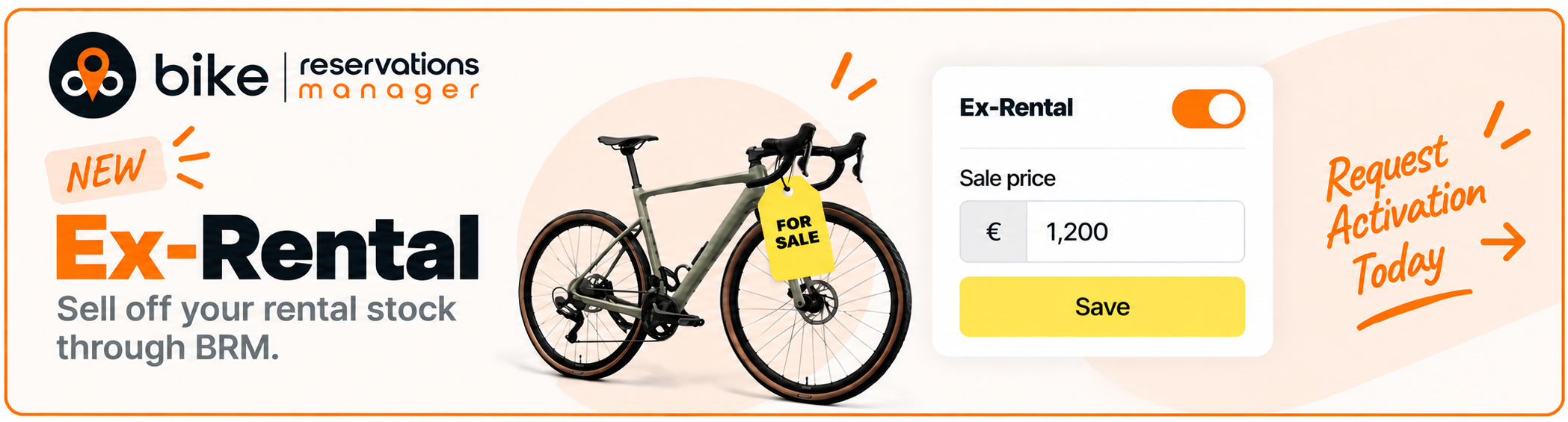
Now sell your end-of-season rental bikes directly through your Customer Booking Page (CBP).
Your existing bike details and photos are already in BRM, so you simply add a sale price and make the bike available for purchase.
Why use Ex-Rental?
Sell your bikes with minimal effort: Your bikes are already listed on your website through BRM. There is no need to create a new listing, take new photos or write a new description. All you need to do is add a sale price to it.
Clear old inventory:
Turn your end-of-season rental stock into sales and make room for your new fleet. Instead of keeping bikes in storage, you can put them in front of customers who are ready to buy.
Sell to customers who already know your bikes: Customers who have rented your bikes already know how they ride and what they are like. This can make your ex-rental bikes a natural option when they are looking to buy a bike.Give your customers an easy way to buy
How to activate X Rental?
- Go to Settings, then Services, and click X Rental.
- Click Activate.
- Go to the product you want to sell, add a sale price, and save.
Once saved, the bike shows up automatically on your Customer Booking Page for customers to view, inquire about, or book.
How to Add a bike for sale?
Once Ex-Rental is active:
- Open the Product line item
- Click on the Buy/Sell Tab
- Enter a sell price & click save
The bike will then be available for customers to view on your Customer Booking Page. That's it, no separate listing or additional software is required!
How Ex-Rental works?
Once an Ex-Rental bike is listed, customers can see it directly on your Customer Booking Page. The customer can then choose how they want to proceed:
1. Send an enquiry
Customers can send an enquiry about the bike directly from the Customer Booking Page. The enquiry will appear in your BRM planner, where you can review it and respond directly by email.
2. Book an appointment
Customers can also book an appointment to come and view or test ride the bike. They can select an available date and time based on the availability you have set.
The appointment will then appear in your BRM planner, where you can review and approve the appointment and manage the booking.
=
Was this article helpful?
That’s Great!
Thank you for your feedback
Sorry! We couldn't be helpful
Thank you for your feedback
Feedback sent
We appreciate your effort and will try to fix the article