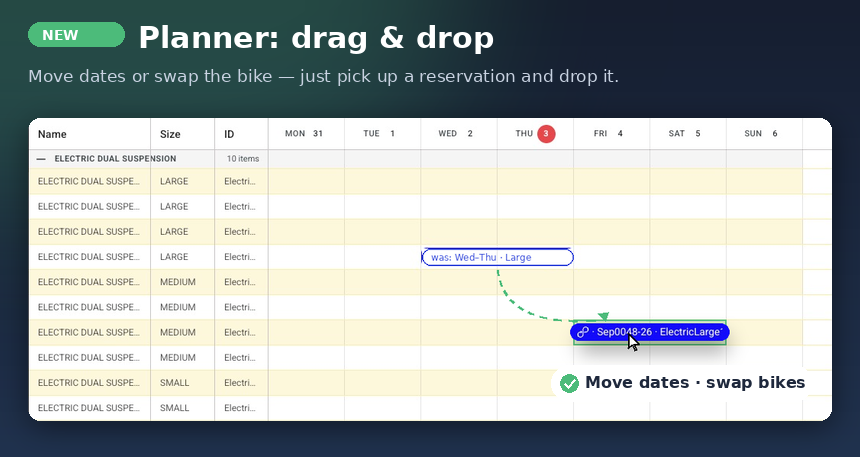
Planner 2.0 lets you change a reservation without opening it: drag the reservation bar (the "lozenge") to move it, or drag one of its ends to make it longer or shorter. In Product view you can also drag a reservation onto a different bike to change which item is allocated.
Every drag is checked by the server before it is saved, so you cannot accidentally create a double booking — if a change is not allowed, the bar simply snaps back to where it was and BRM tells you why.
What you can do
| Action | How | Reservations view | Product view |
|---|---|---|---|
| Move to different dates (same length) | Drag the middle of the bar left or right | Yes | Yes |
| Change the start (lengthen or shorten from the front) | Drag the left edge of the bar | Yes | Yes |
| Change the end (lengthen or shorten from the back) | Drag the right edge of the bar | Yes | Yes |
| Re-allocate to another bike / item | Drag the bar up or down onto another item's row | No — rows are reservations, not items | Yes |
| Change dates and item in one go | Drag diagonally: across to the new dates and onto the new row | No | Yes |
Moving a reservation (shifting the dates)
- Hover over the reservation bar. Press and hold anywhere in the middle of the bar (not on the edges).
- Drag left or right. A "ghost" copy of the bar shows exactly where it will land as you move.
- Release the mouse. The bar dims for a moment while BRM saves the change, then the planner refreshes and shows the reservation in its new place.
The reservation keeps its length and its pick-up and return times — only the dates change. In the day-by-day view you move in whole days; in the hourly view you can move in hourly steps.
Tip: if you click without moving, the reservation opens as normal. A drag that actually moved the bar does not open the reservation on release, so you can drop it without a detail panel popping up.
Lengthening or shortening a reservation
- Hover over the bar. The left and right edges are drag handles.
- Press and hold an edge and drag it to the new start or end. The ghost shows the new extent.
- Release to save.
Notes:
- You cannot drag an end past the other end (the bar will simply stop at the last valid position).
- If a reservation runs past the edge of the dates currently on screen, the edge that is off-screen has no handle. Scroll or widen the date range first, or change the dates from the reservation itself.
Changing the allocated bike (Product view only)
In Product view each row is an individual item, so moving a bar up or down changes which item is allocated to that reservation.
- Switch the planner to Product view.
- Press and hold the middle of the reservation bar and drag it onto the row of the item you want instead. The ghost appears on the target row.
- Release. BRM swaps the item on the reservation (this is the same "swap item" action you can do from the reservation detail panel).
Things to know:
- You can only drop onto an item row. Category and product-line heading rows are not valid targets — the bar stays in its own row.
- If you drag diagonally (new dates and a new row), BRM applies the date change first and then the item swap. If the swap is refused, the date change may already have been saved — the planner refreshes so you always see the true state.
- In Reservations view rows are reservations rather than items, so up/down dragging does nothing.
What you will see after you drop
- Saved: a green "Reservation updated" message, and the planner refreshes.
- Saved, but price not recalculated: a yellow warning — "The price was not recalculated. Open the reservation to review its pricing." This happens when the new dates would normally change the price but the reservation's settings prevent an automatic recalculation. Open the reservation and check the price.
- Refused because it collides with another booking: a pop-up explains that the reservation could not be moved because it clashes with existing activity, and lists links to the conflicting reservation(s) so you can see what is in the way. The bar snaps back. Resolve the clash (move the other booking, or choose a different item / dates) and try again.
- Refused for another reason: a red message with the reason, and the bar snaps back.
Which reservations can be dragged?
- Reservations that have not yet ended. Once a reservation's return date and time are in the past its bar is fixed — you can still click it to open it, but you cannot drag it. Edit past reservations from the reservation detail panel instead.
- Reservation bars only. Capacity meters, appointments and other non-reservation bars on the planner cannot be dragged.
- While a change is still saving, that reservation cannot be picked up again — wait for the planner to refresh.
Keyboard alternative
If you prefer the keyboard (or need it for accessibility), click a reservation bar to focus it, then:
- Alt + ← / Alt + → — move the reservation one cell earlier / later (a day in the day-by-day view, one time slot in the hourly view).
- Alt + Shift + ← / Alt + Shift + → — shorten / lengthen the reservation by one cell (the end moves; the start stays put).
- Enter — open the reservation.
Keyboard moves stay in the same row; to change the allocated item use the mouse in Product view or the swap option in the reservation detail panel.
Good to know
- Nothing changes until you release the mouse — drop the bar back where it started and no change is made.
- Drag and drop uses exactly the same rules as editing the dates or swapping the item from the reservation panel, so anything BRM would refuse there it will refuse here too.
- All dates and times are your store's local times, regardless of the time zone of the computer you are using.
See also:
Two views, product & reservation
How to Extend or Change the Dates & Times of a Reservation
Adding, Swapping & Removing inventory in a reservation
Was this article helpful?
That’s Great!
Thank you for your feedback
Sorry! We couldn't be helpful
Thank you for your feedback
Feedback sent
We appreciate your effort and will try to fix the article