Tours, Activities and Events (TAE) lets your customers book your guided rides, tours, workshops and events online through your Customer Booking Portal, alongside your normal rentals. Customers browse your events, pick a date and time slot, and check out in the same basket as a bike hire.
The resulting booking can be limited to the inventory you specify and given a reservation type you define.
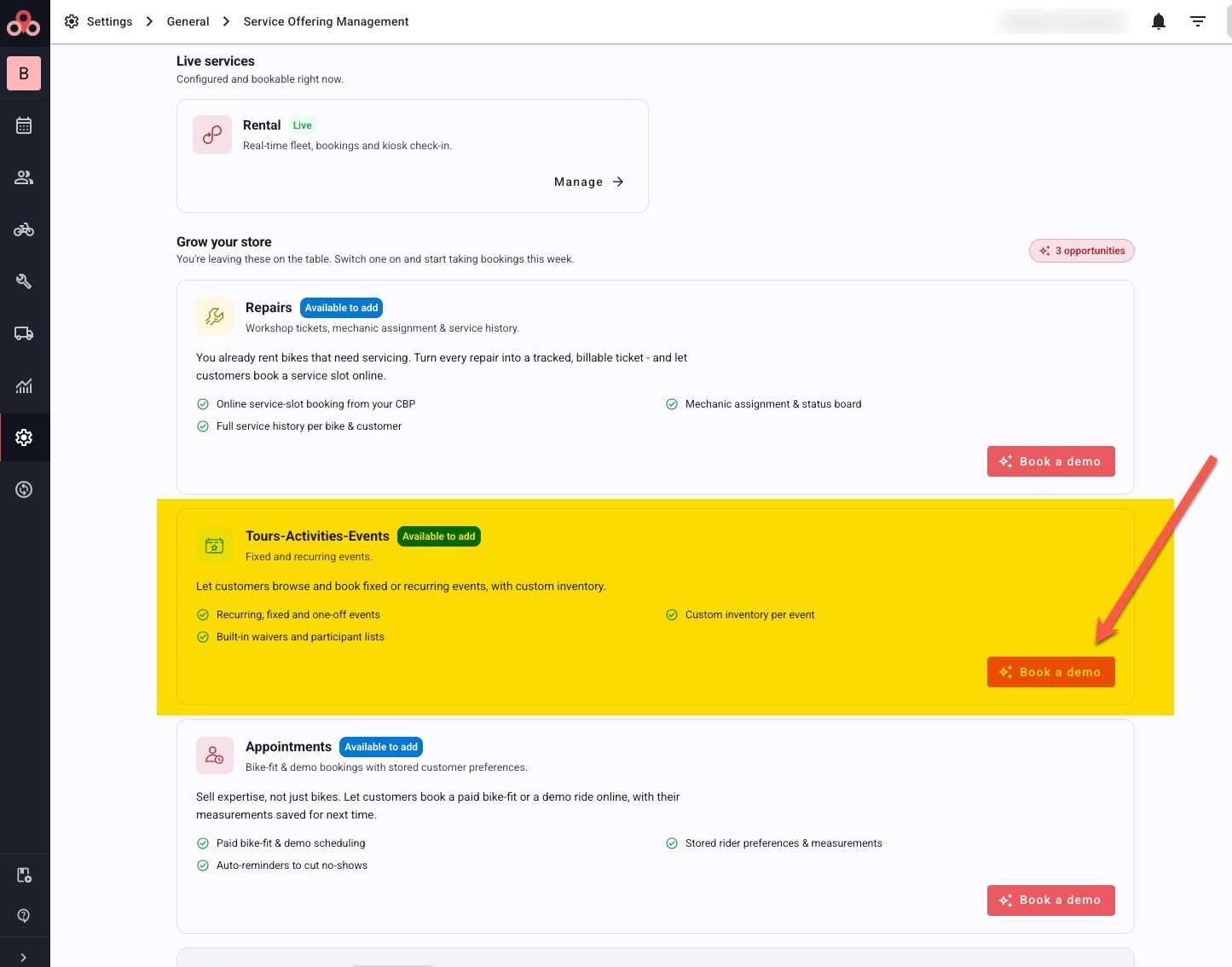
Step 1 — Request it for your portal
Go to Settings > Service Offering Management > Tours, Activities and Events and click Book a demo. This lets our support team know you'd like the module switched on for your Customer Booking Portal. We'll enable it for your store and let you know when it's live. (we reserve the right to charge for this powerful module, but it be offered as part of your package)
Step 2 — Set up your events
Your events are managed under Settings > Optional Modules > Events. This is where you create each event — its name and description, photos, and its schedule (dates, times and how many people can book each slot). An event appears on your portal automatically while it's running — there's no separate on/off switch to flip.
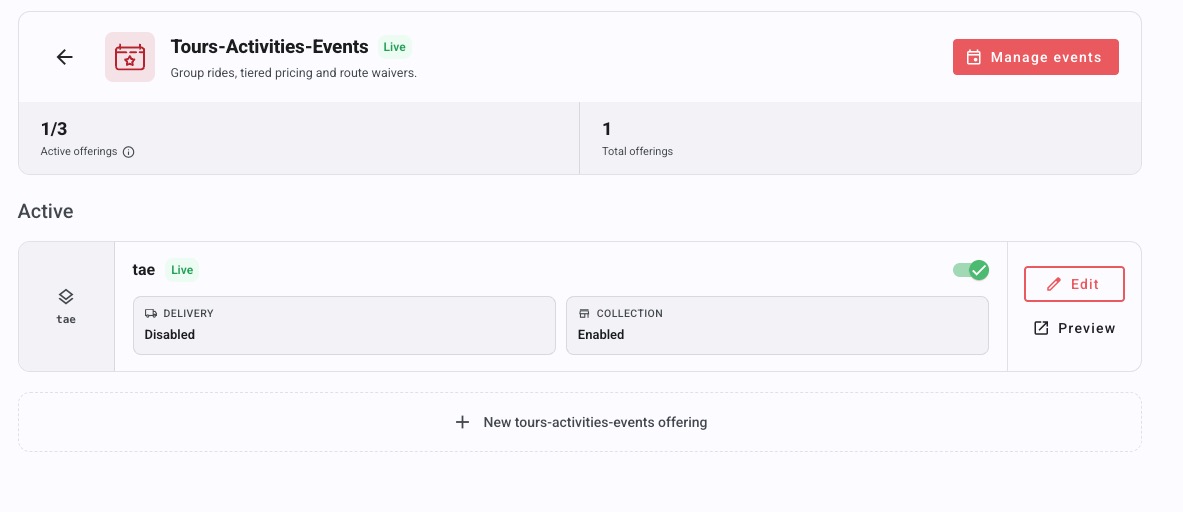
Important: Requesting the module switches on the ability to show events on your portal. Your customers will only see events that are currently running — that is, within their scheduled dates. If you haven't created any events yet, or none are running right now, nothing will appear on the portal.
Already used tours or events on the Online Booking Widget (OBW)?
It's the same Events page. Any events you've already built will carry over automatically — once Tours, Activities and Events is enabled on your Customer Booking Portal, they'll simply appear there too, with no need to re-create them.
What your customers will see
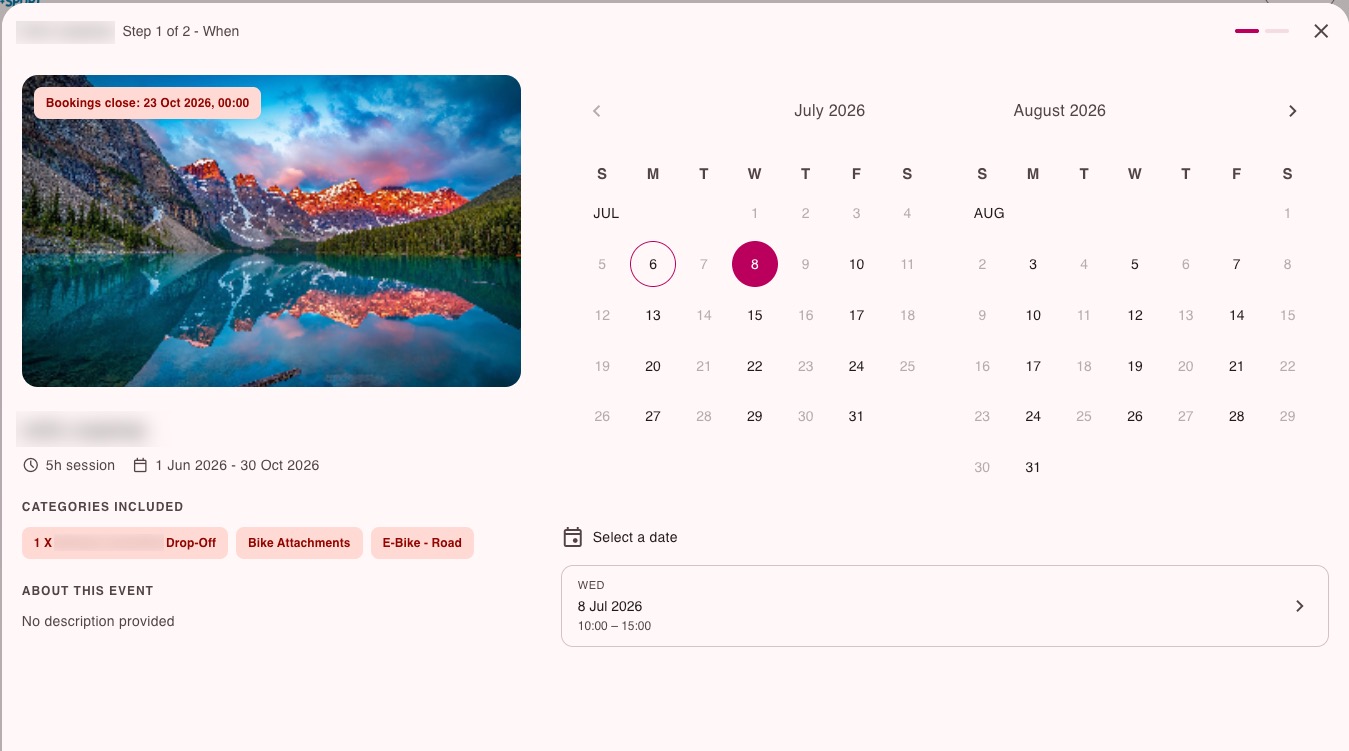
Once it's live and you have a running event, a customer visiting your booking portal can browse your events, open one to see the description and photos, pick an available date and time slot, and book it through the normal checkout.
Not seeing your events on the portal?
Check that:
- Tours, Activities and Events has been enabled for your Customer Booking Portal (Step 1),
- you've created events under Settings > Optional Modules > Events, and
- those events are within their scheduled dates (an event that's finished, or hasn't started yet, won't show).
If it all looks right and they're still not appearing, get in touch with support.
See Also
Was this article helpful?
That’s Great!
Thank you for your feedback
Sorry! We couldn't be helpful
Thank you for your feedback
Feedback sent
We appreciate your effort and will try to fix the article